Reading & narration
Reading views and turning pages
Six ways to read a book, how to turn pages, and what waits at the very end.
Updated Sep 29, 20261 min read
Open any book from your library. The cover comes first — choose Start reading or the arrow to go to the first page.
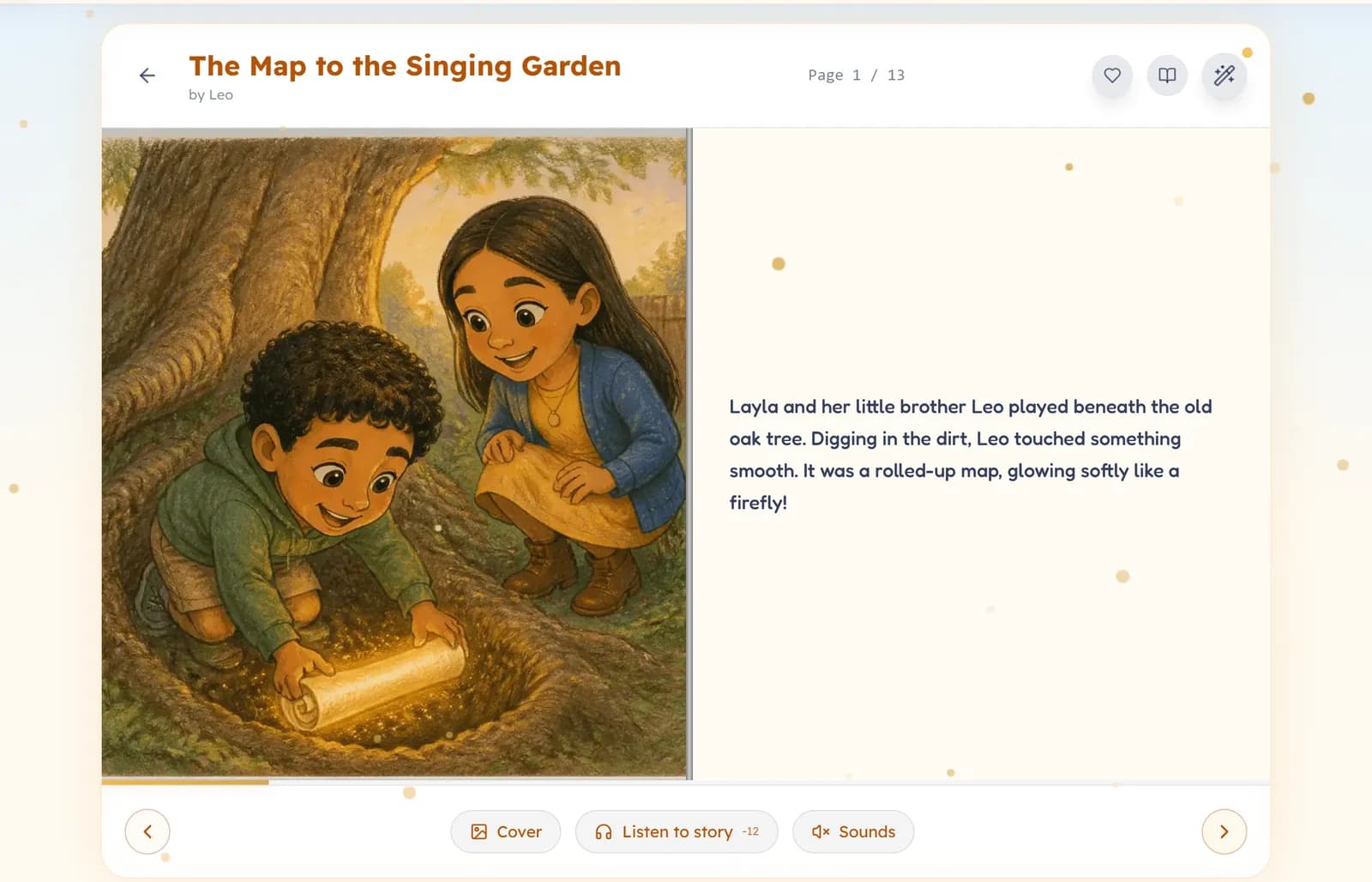
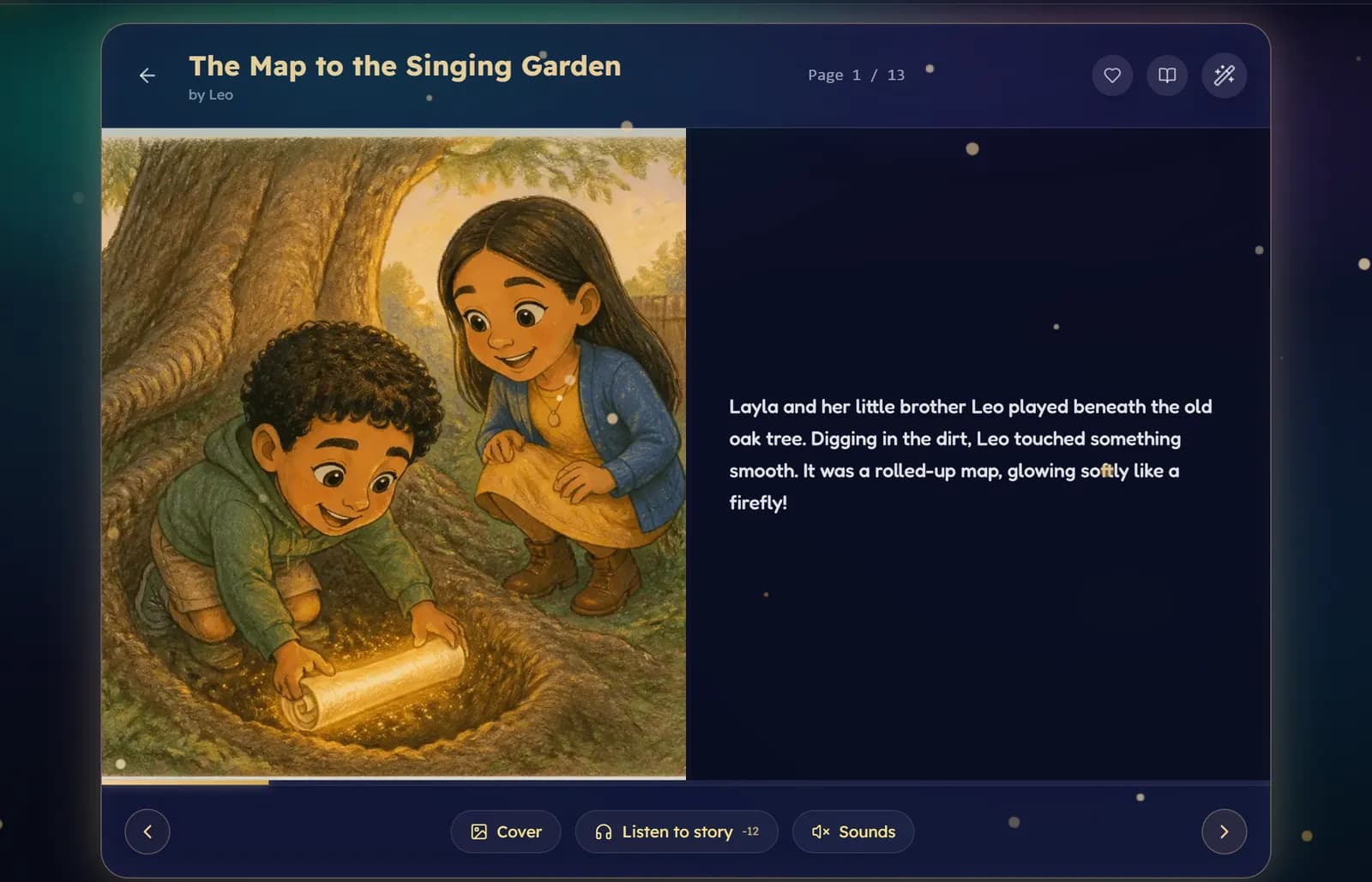
Choose how the book is shown
The small book icon at the top of the reader is the View mode menu.
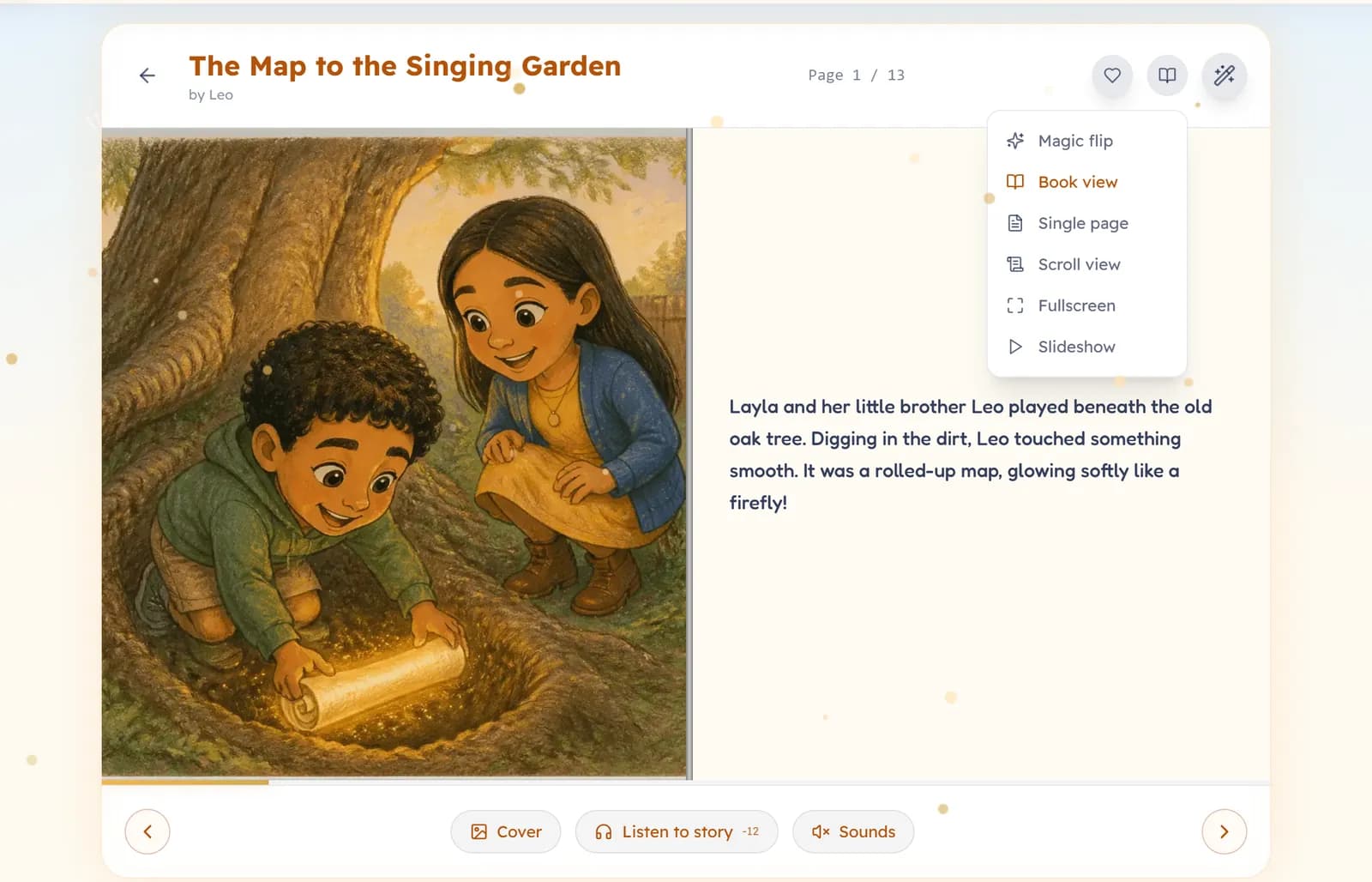
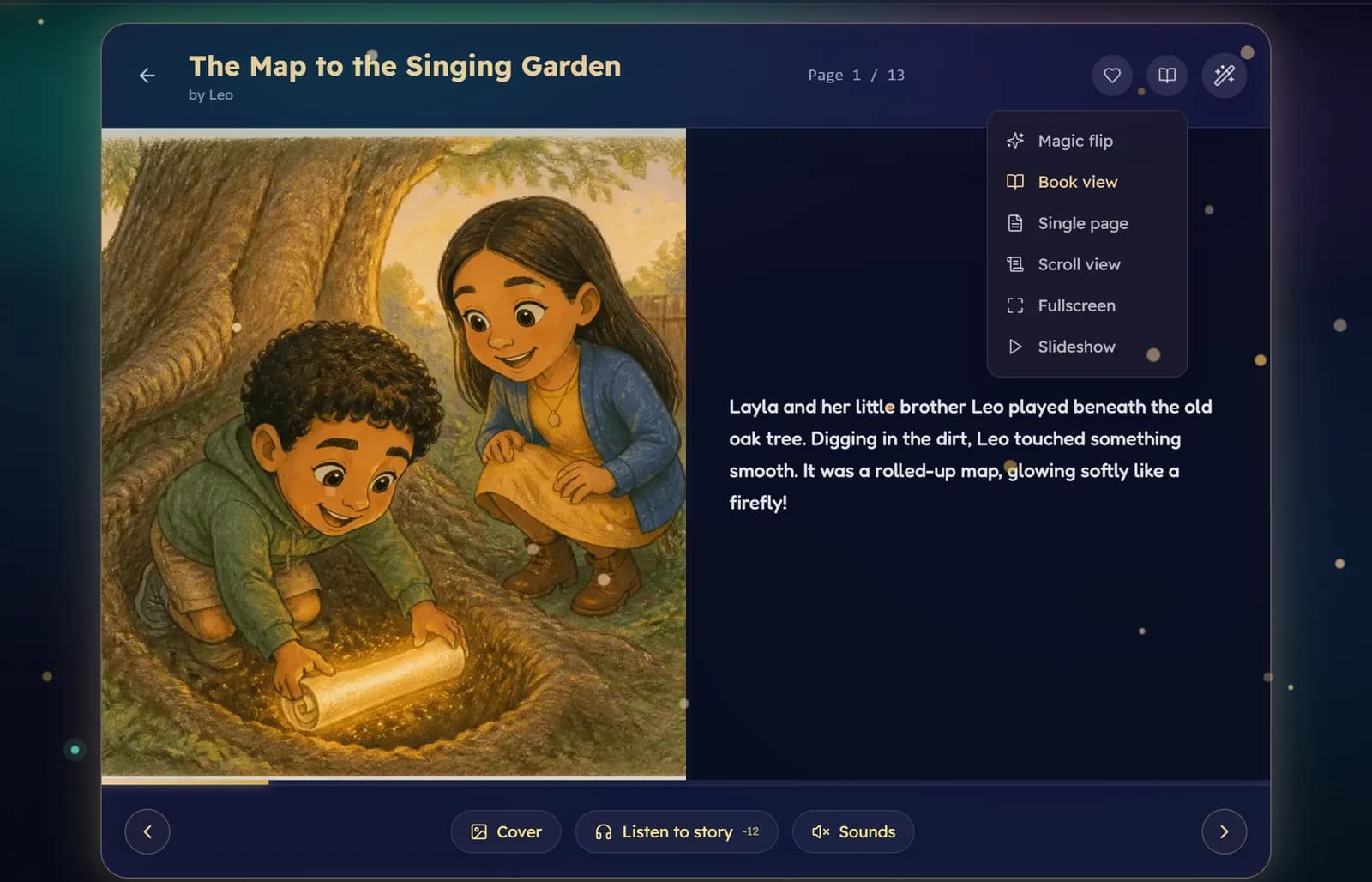
- Book view — the default. Picture and words side by side, like an open book. On a phone it shows one page at a time.
- Magic flip — the same, with a turning-page animation.
- Single page — one large page at a time. Good for a small screen or a small reader.
- Scroll view — the whole book as one long page you scroll.
- Fullscreen — the book fills the screen, with the controls tucked away.
- Slideshow — the pages turn by themselves, like a film.
Turning pages
Tap the arrows, press the left and right arrow keys, or swipe. A book written in Arabic turns from right to left, the way an Arabic book is read, so swipe the other way.
At the end of the book
If you added a moral, a word list or a quiz on the story setup step, they follow the last page, under the headings The lesson, Words to know and Quiz time.
Was this helpful?
Read next
- Listen to a story: narrationHow to order a narrated reading, what it costs, and how the voices are chosen.
- Sounds, the sleep timer and reader settingsQuiet background sounds, a timer that stops the narration, and settings for text size and easier reading.
- Download a print-ready PDFMake a PDF of any finished book to print at home or at a print shop, and save a book to read offline.