Printing & sharing
Share a story with family
Private, Link Only or Public: who can open a book, and how to send it to grandparents.
Updated Sep 29, 20261 min read
Every book starts Private: only you can open it. To show it to someone else, open the reader’s wand menu and choose Share story.
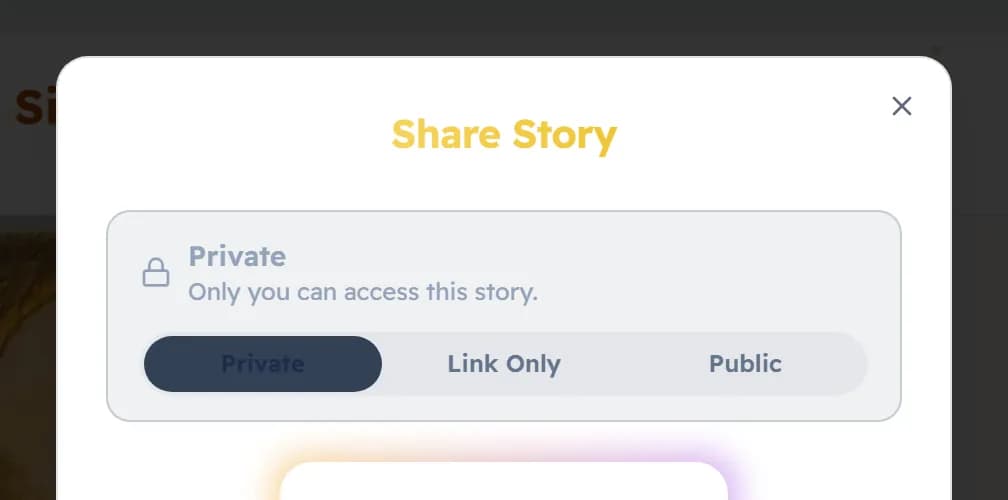
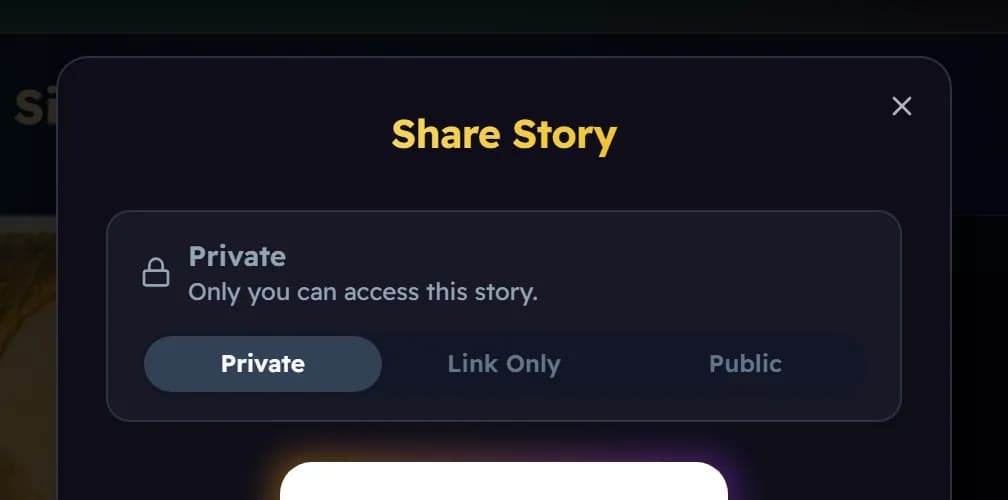
- Private — only you can open the book.
- Link Only — anyone who has the link can read it, with no account and no app. Nobody can find it unless you send them the link.
- Public — the book appears in the Community, where other families can find and read it.
Send a link
Choose Copy link, or one of the buttons for X, Facebook, WhatsApp or email. Sharing a Private book turns it into Link Only for you, and says “Private link created”. A QR code is there too, so a phone can scan it. Use Reset link to make an old link stop working.
Who can change sharing
Only the person who owns the book. In Kid Mode, changing sharing asks the grown-up question first.
Was this helpful?
Read next
- Download a print-ready PDFMake a PDF of any finished book to print at home or at a print shop, and save a book to read offline.
- How we keep stories safeWhat we check in the words and the pictures, what happens when something is refused, and how to report a problem.
- Reading views and turning pagesSix ways to read a book, how to turn pages, and what waits at the very end.